Monitoring Station Archivist
Control room overview of all recorded video streams
Section titled “Control room overview of all recorded video streams”You may also want to take a look at the following:
Hardware Requirements, Hardware Setup,Software Requirements, Software Setup,Presets, Troubleshooting/FAQ
Use the Archivist to analyze your recordings and to create individual reports.
Simply scroll back in time and find out what happened at any given recorded time.
Login here with the credentials assigned to you.
**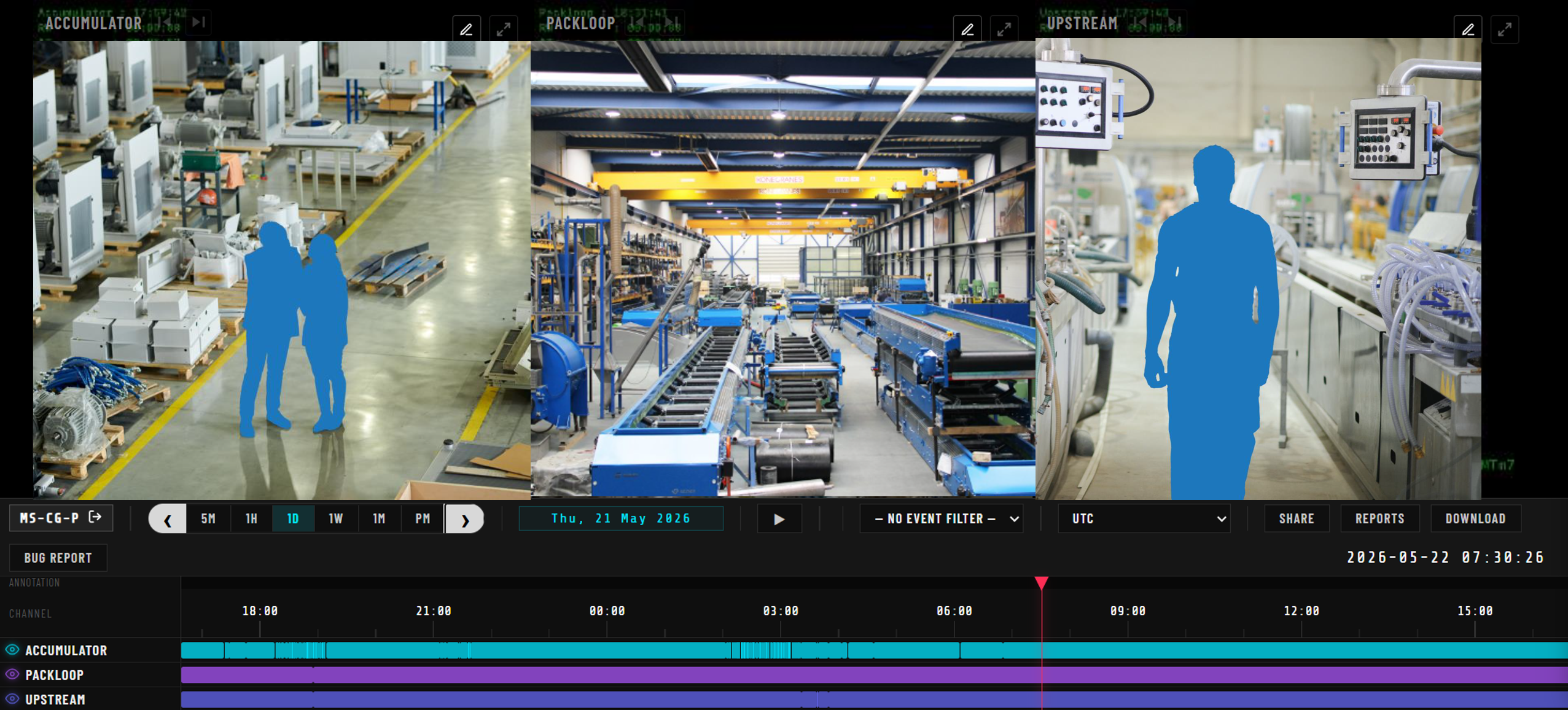 **Click on the Play
  button in the middle beneath the videos to start playing or the Pause
  button to freeze the recordings.
Scroll up & down with your mouse through the video streams to see frame by frame. To do so, keep your mouse hovering over the videos.
Select 5 minutes, 1 hour, 1 day, 1 week, 1 month or a specific time period and select the desired time zone. Please make sure when communicating with others to select the same time zone. You can also scroll up or down in the colored timeline at the bottom to change between minute, hour and day views for easier and more precise navigation.
Select your event filters to see events marked at the bottom in the recording timeline in red color. Events are customizable depending on your use case.
Drag & drop the red triangle  to select the time you wish to see or click below the triangle to jump to a certain point.
Press Ctrl+Alt+Y to start the camera viewer and drag camera views to view them on another screen (in another window)or simply press Ctrl and click on a video to display it in a new tab.
Share your findings with co-workers (by clicking on “SHARE”).
Create automatic event reports (by clicking on “REPORTS”)for individual time slots.
Download video sequences for desired time slots (by clicking on “DOWNLOAD”).
**Server Processing can be performed on the video streams:**Detection, Blurring, Reports and more can be processed on demand.
PLEASE REACH OUT TO AMA PROJECT MANAGEMENT IN CHARGE IN CASE OF ANY QUESTIONS OR ISSUES!