Monitoring Station Software Setup
iPad mini, External Cameras, Apps and Settings
Section titled “iPad mini, External Cameras, Apps and Settings”Click on Monitoring Station Software Requirementsfor more information.
You may also want to take a look at the following:
Hardware Requirements, Hardware Setup, Presets, Archivist, Troubleshooting/FAQ
iPad mini
Section titled “iPad mini”Deactivate these settings to reduce background activity and reduce issues.
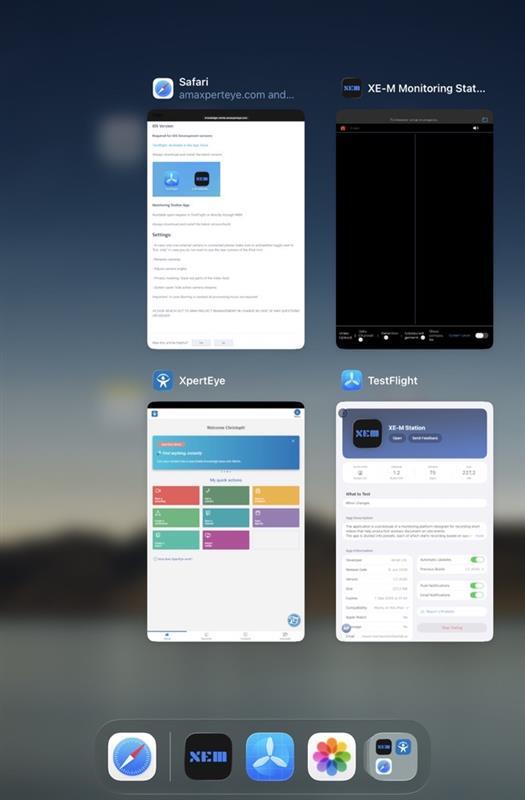
In Testflight please also deactivate “Automatic Updates” to prevent issues. 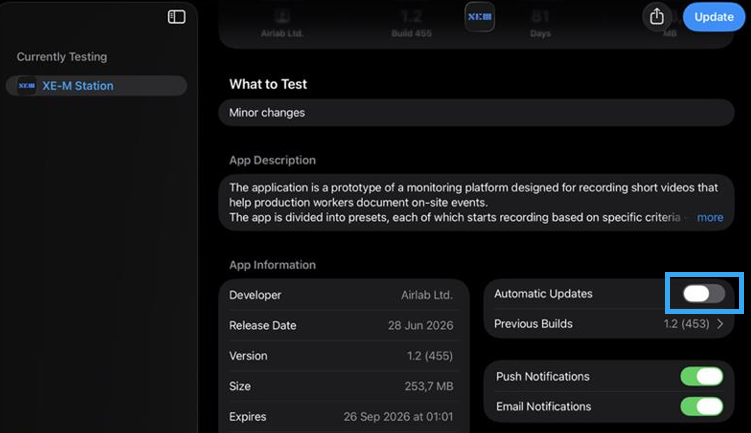
Always delete the app whenever an update is available and install the app again.
External Cameras
Section titled “External Cameras”Please make sure external cameras support UVC (USB Video Class).
- Obsbot Meet SE (manual) ->Please deactivate Obsbot AI controls to benefit from Monitoring Station AI (click for instructions)
- Obsbot Tiny 2 (manual) -> Please deactivate Obsbot AI controls to benefit from Monitoring Station AI (click for instructions)
- Insta360 Link (manual) -> Please deactivate Insta360 AI controls to benefit from Monitoring Station AI (click to see instructions)
- Endoscope: Pancellant
- 360° camera: j5create JVCU360
- Depending on the preset you may also use the rear camera of the iPad in case there are no external cameras available.
iOS Version:
Section titled “iOS Version:”Required for iOS Development versions:
Testflight: Available in the App Store
XEM/Monitoring Station App:
Section titled “XEM/Monitoring Station App:”Available upon request in TestFlight or directly through AMA.
Whenever there is an update available please delete the XEM app first and then download and install the latest version/build.
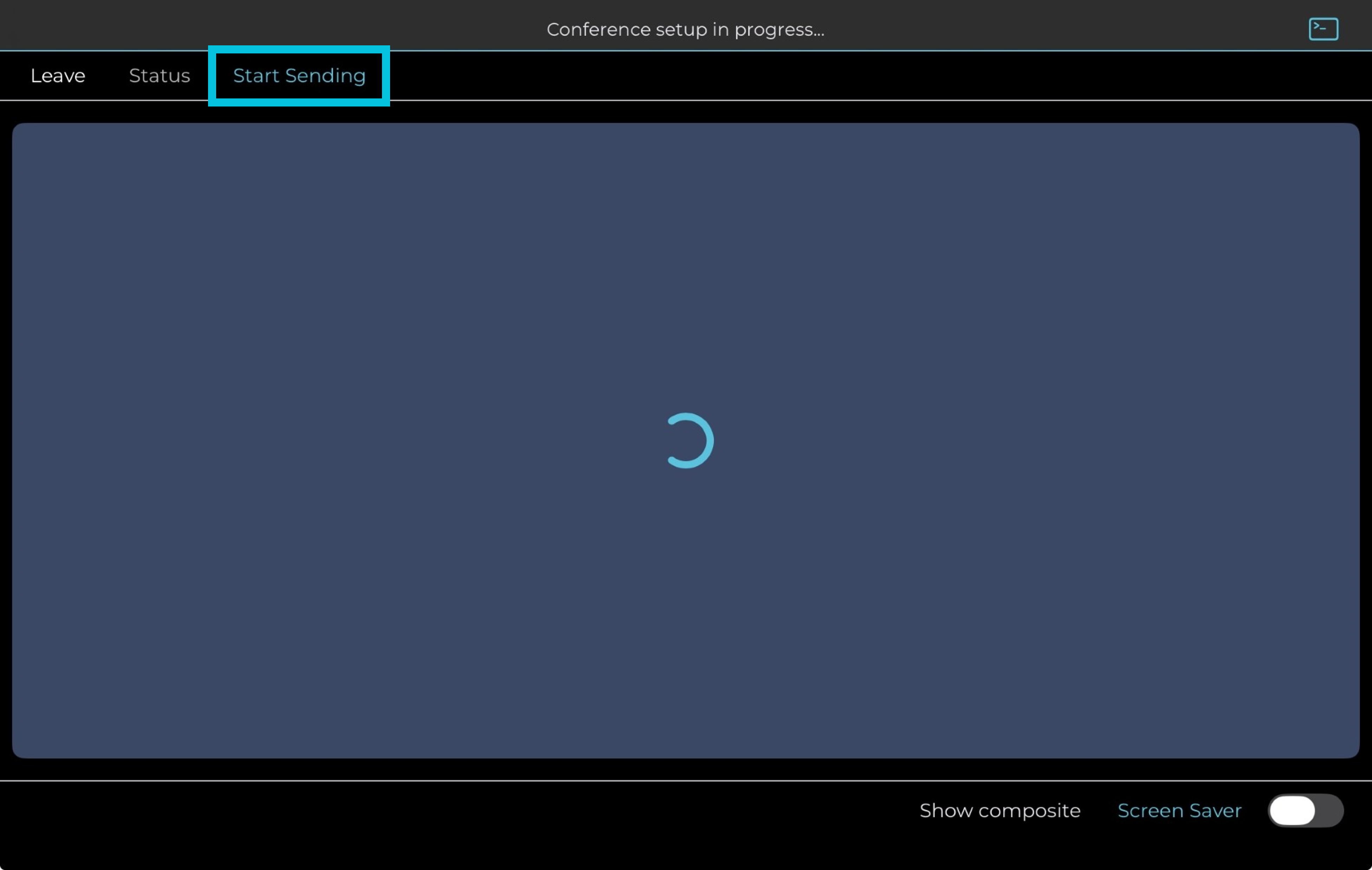
After logging in and selecting a preset please make sure the video strem is displayed and then to tap on “Start sending”.
If a camera is disconnected, please restart the application after swiping up from the bottom and closing the app completely.
Settings:
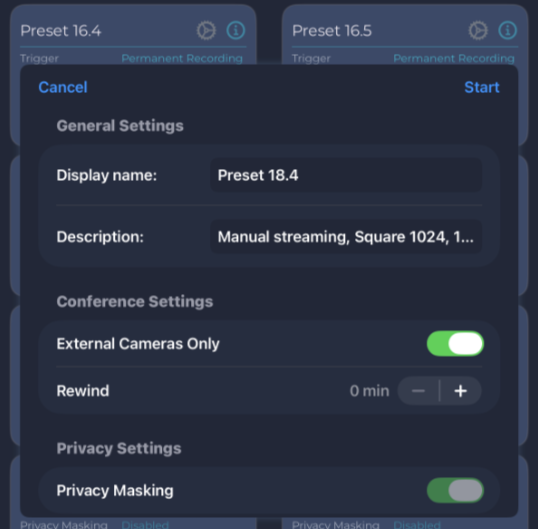
Section titled “Settings:” - You may also use the rear camera of the iPad mini in case there are no external cameras available. To do so tap on the grey gear wheel of the preset you want to use and deactivate “External Cameras Only”
-
Rename cameras e.g. based on the area of recording to easily find them in the Archivist
-
Change the color of the text on top of the video streams to white or another color depending on the background to make it best readable
-
Adjust camera angles
-
Privacy masking: black out parts of the video feed
-
Screen saver: hide active camera streams
**Server Processing can be performed on the video streams:**Detection, Blurring, Reports and more can be processed on demand.
PLEASE REACH OUT TO AMA PROJECT MANAGEMENT IN CHARGE IN CASE OF ANY QUESTIONS OR ISSUES!