Release Note v11
XpertEye v11 introduces a redesigned session and conference experience, with a stronger focus on simplifying navigation, maximising the available workspace, and making session content and call tools easier to access.
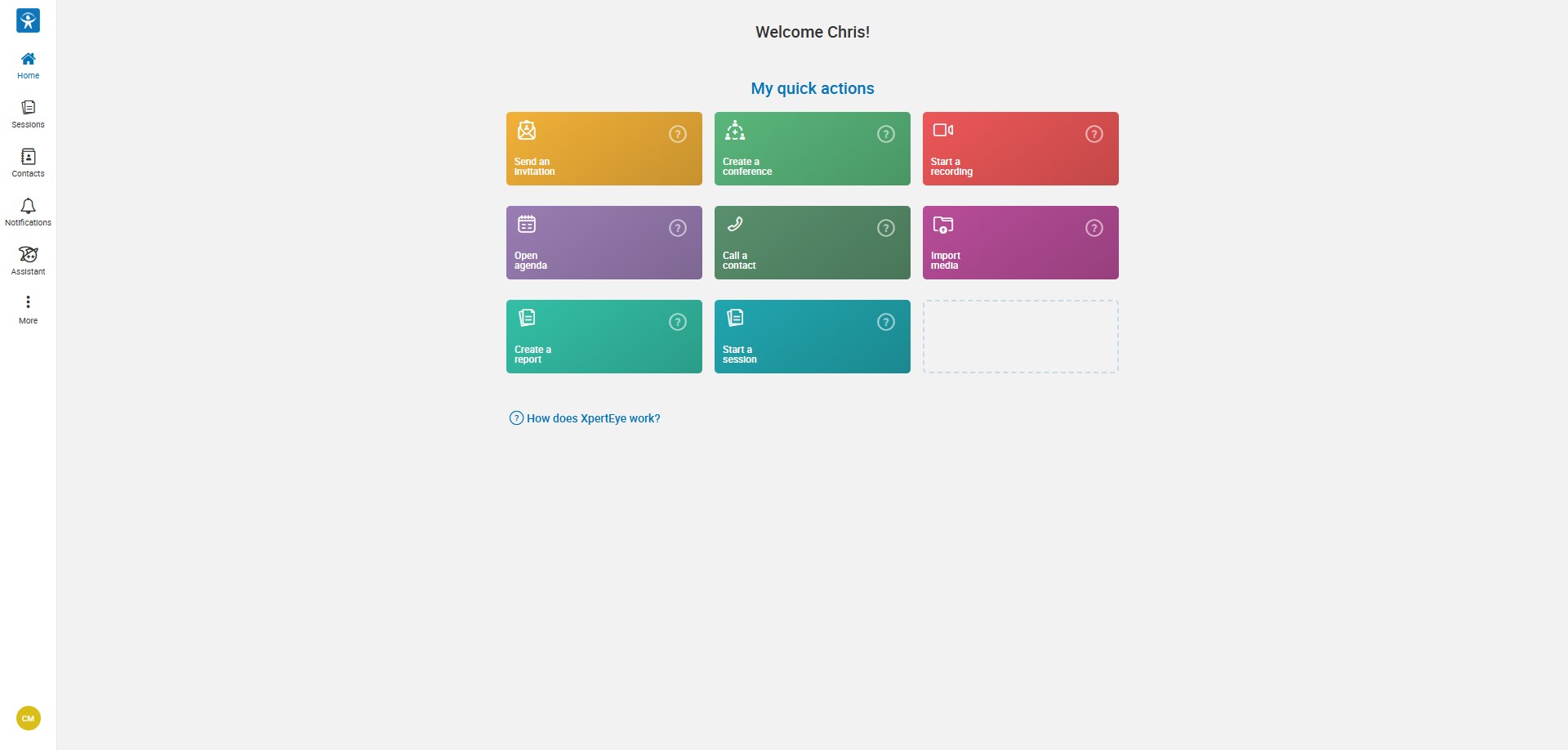
A new, streamlined desktop experience
Section titled “A new, streamlined desktop experience”The desktop interface has been redesigned to give you more space for what matters most. A new compact navigation menu provides quick access to Home, Sessions, Contacts, Notifications, Assistant and More, while giving the main workspace more room.
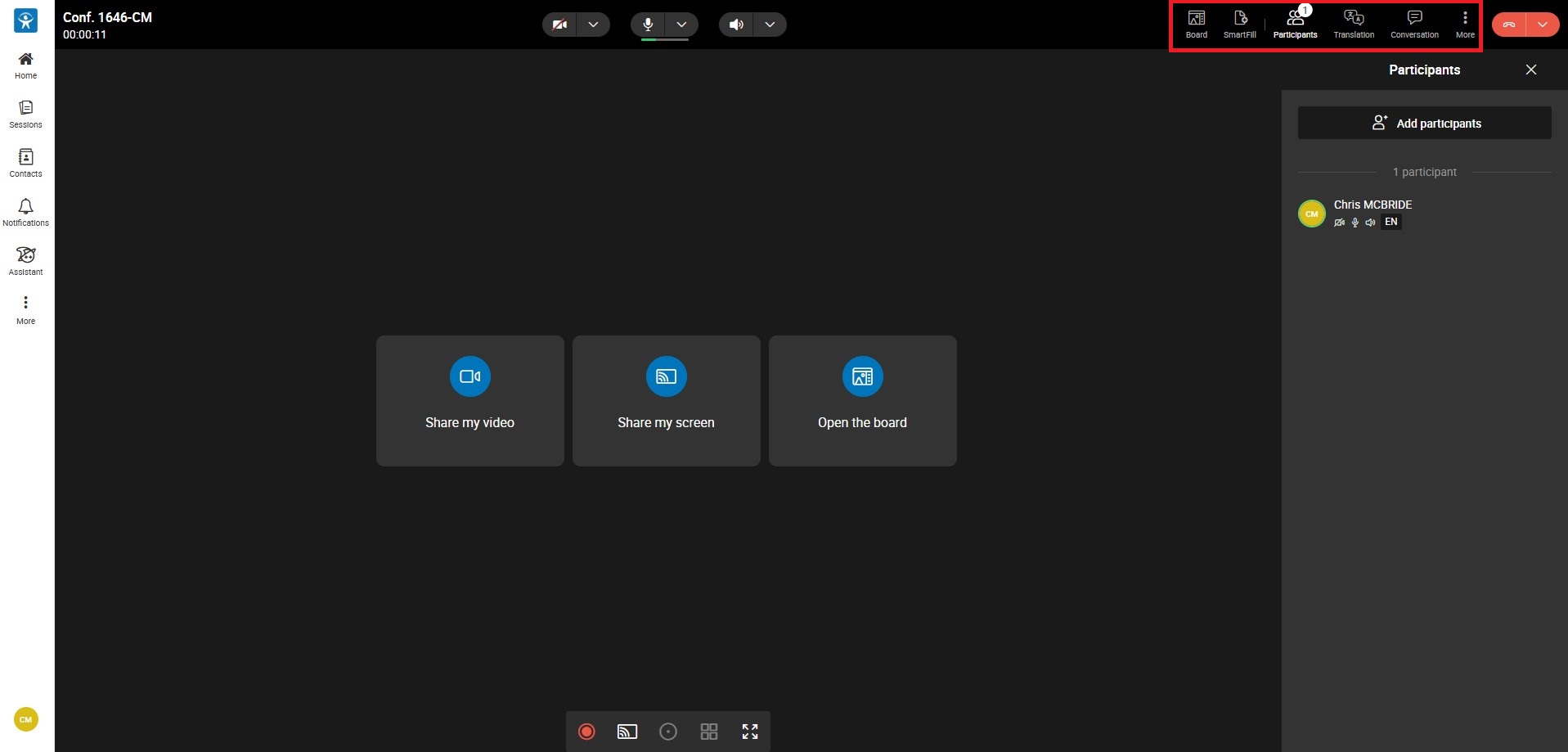
Your conference tools, always within reach
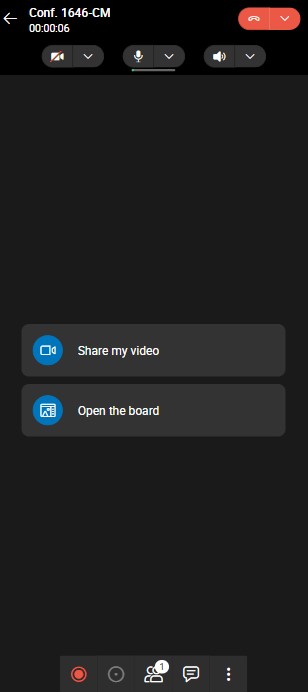
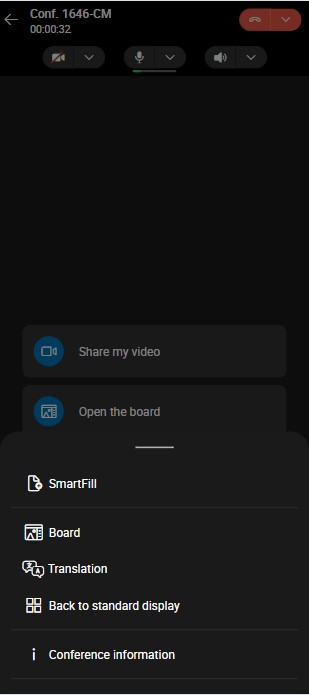
Section titled “Your conference tools, always within reach”Whether you’re using desktop or mobile, your conference experience is now simpler and less cluttered. On desktop, key tools such as SmartFill, Participants, Live Translation and Conversation are easily accessible from the conference toolbar. On mobile, the bottom bar has been streamlined, while the new More menu brings additional conference tools together in one convenient place.
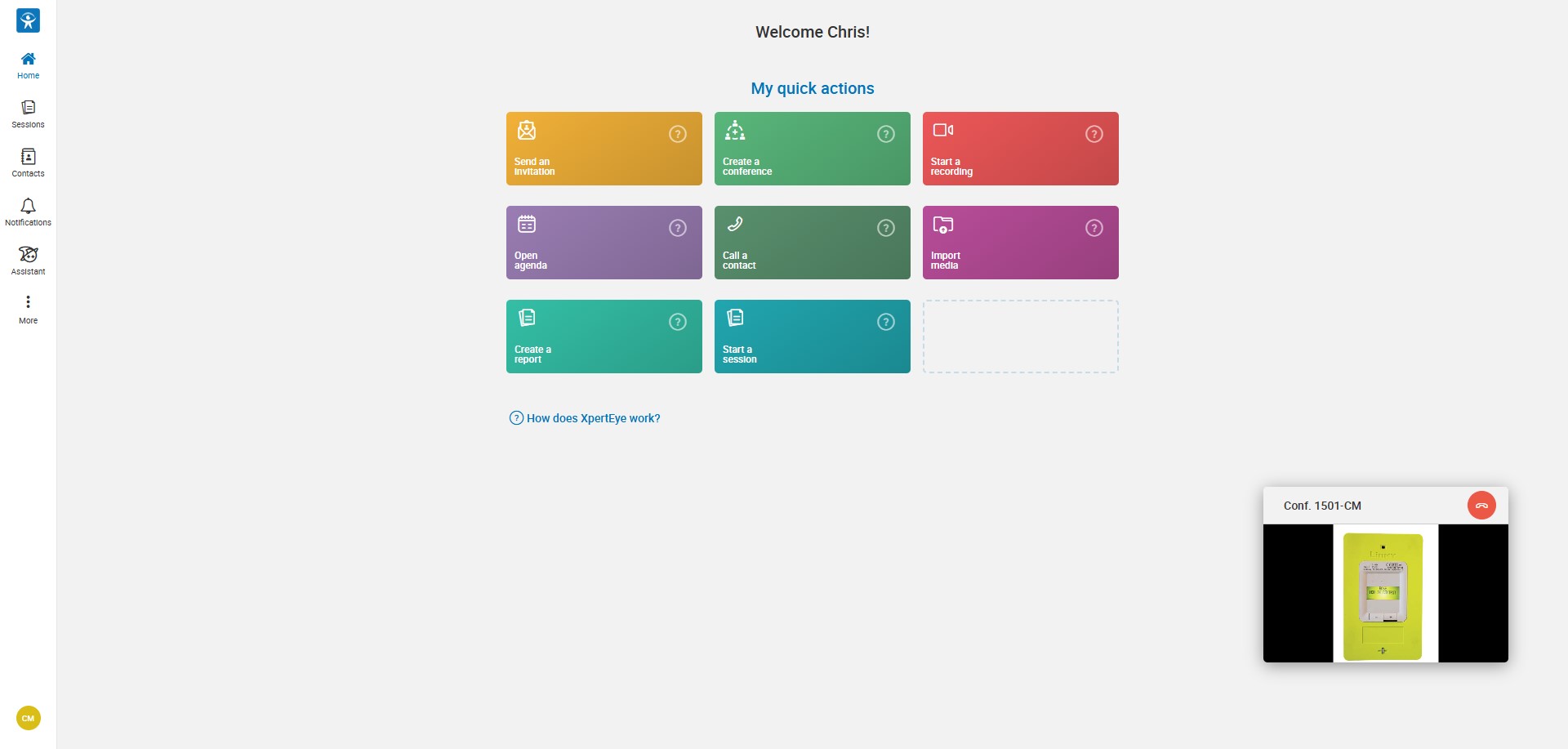
You can now continue to keep an eye on your active call while navigating through XpertEye. When you leave the conference view, the call automatically switches to a Picture-in-Picture (PiP) window, allowing you to continue viewing the conference while accessing other parts of the application.
- The PiP window remains visible while you navigate through the interface.
- Clicking the PiP window takes you straight back to the active conference.
- This makes it easier to access other features without losing sight of the ongoing call.
Easily switch participants in Live Translation
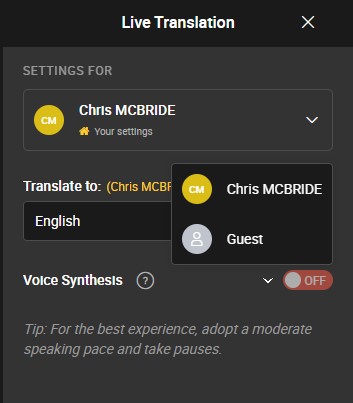
Section titled “Easily switch participants in Live Translation”Live Translation now allows users to switch directly between conference participants from within the Live Translation panel.
- A participant selector is available when more than one participant is currently in the conference.
- Users can select another participant directly from the panel.
- Live Translation immediately switches to the selected participant.
- The Live Translation panel remains open after switching.
- Only participants currently in the conference are displayed in the selector.
A unified view of your session conversation
Section titled “A unified view of your session conversation”All the important interactions from your session are now brought together in one unified Conversation timeline.
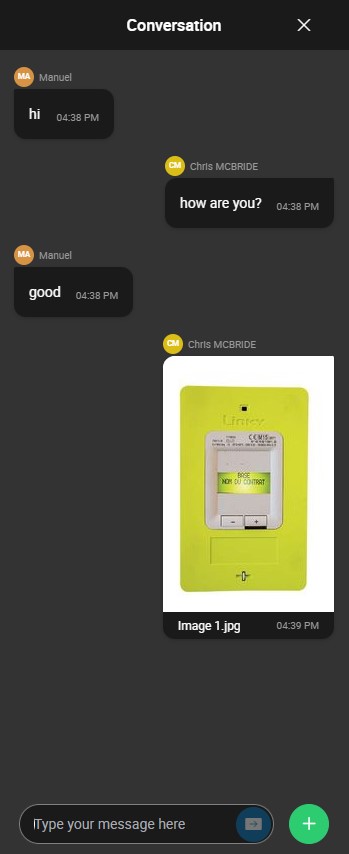
Chat messages, photos and boards are displayed chronologically in a single view, making it easier to follow the complete history of a session. A badge highlights unseen content, so you can quickly identify when there are new items to review.

Create a session without starting a call
Section titled “Create a session without starting a call”Start a session is now back as a quick action, with a new and more flexible workflow. Instead of immediately starting a conference, selecting Start a session now opens a new session directly, where you can start adding content right away. You can add photos, videos, audio recordings, files or boards to the session without being on a call.
Add content to a session, anytime
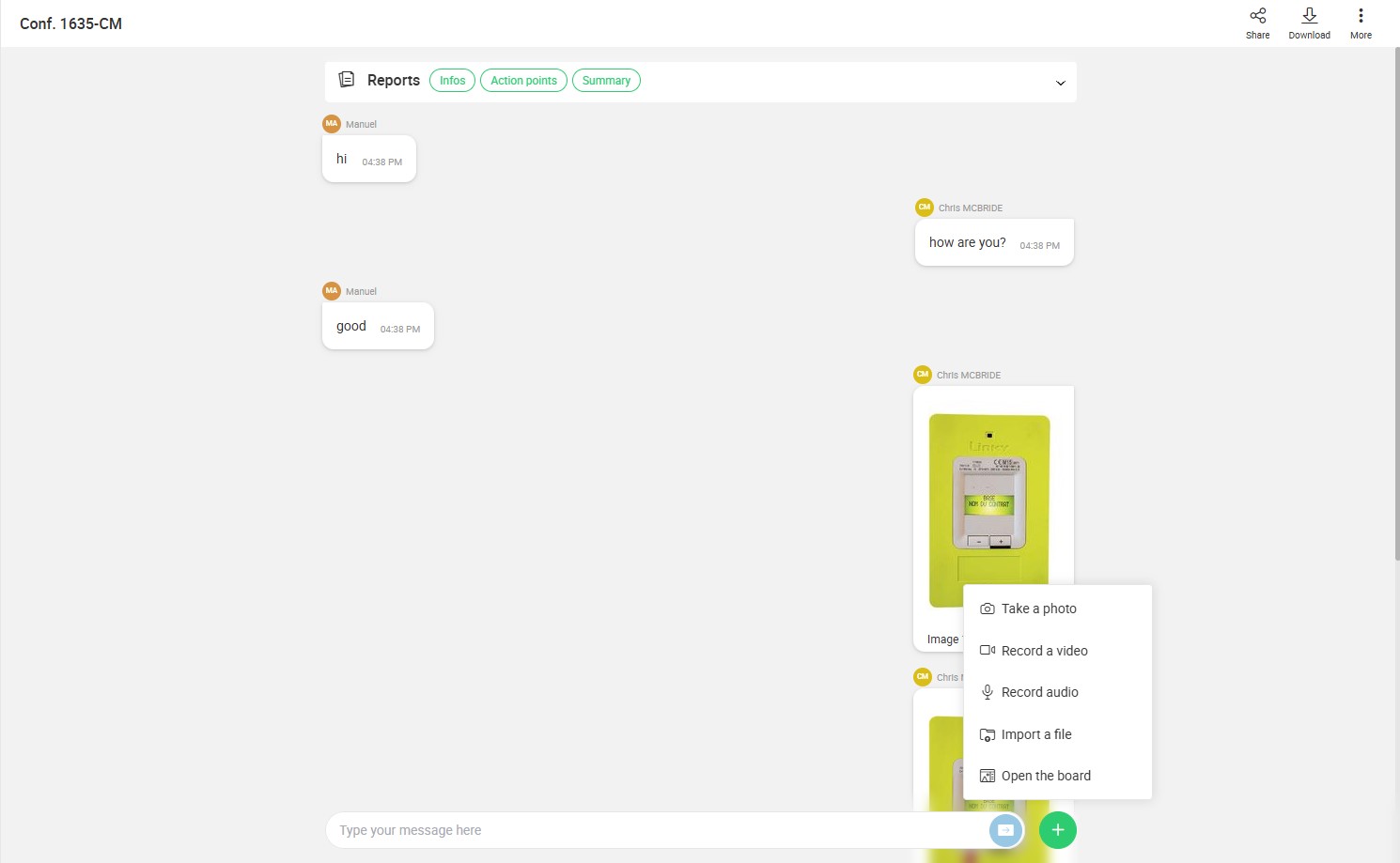
Section titled “Add content to a session, anytime”Adding content to a session is now easier with a dedicated “+” button, available directly from the session view. Session participants can use it to quickly:
- Take a photo
- Record a video
- Record audio
- Import a file
- Open the board
No call is required to add content to a session. This makes it easy to enrich a session before, during or after a conference.
The available options automatically adapt to the current context. When you are in a call, the “+” menu is limited to Import a file, allowing you to quickly add a file to any session you participate in — even if it is not the session you are currently in a call with.
On mobile, taking a photo or recording a video opens the device’s native camera for a seamless capture experience.
A simpler way to explore session content
Section titled “A simpler way to explore session content”The Session Details experience has been redesigned to make reviewing your session more focused and intuitive. Reports and session content now take advantage of the full desktop screen, while reports and media open in a dedicated full-page view for a more immersive experience. This brings the desktop experience in line with the familiar behaviour already available on mobile.
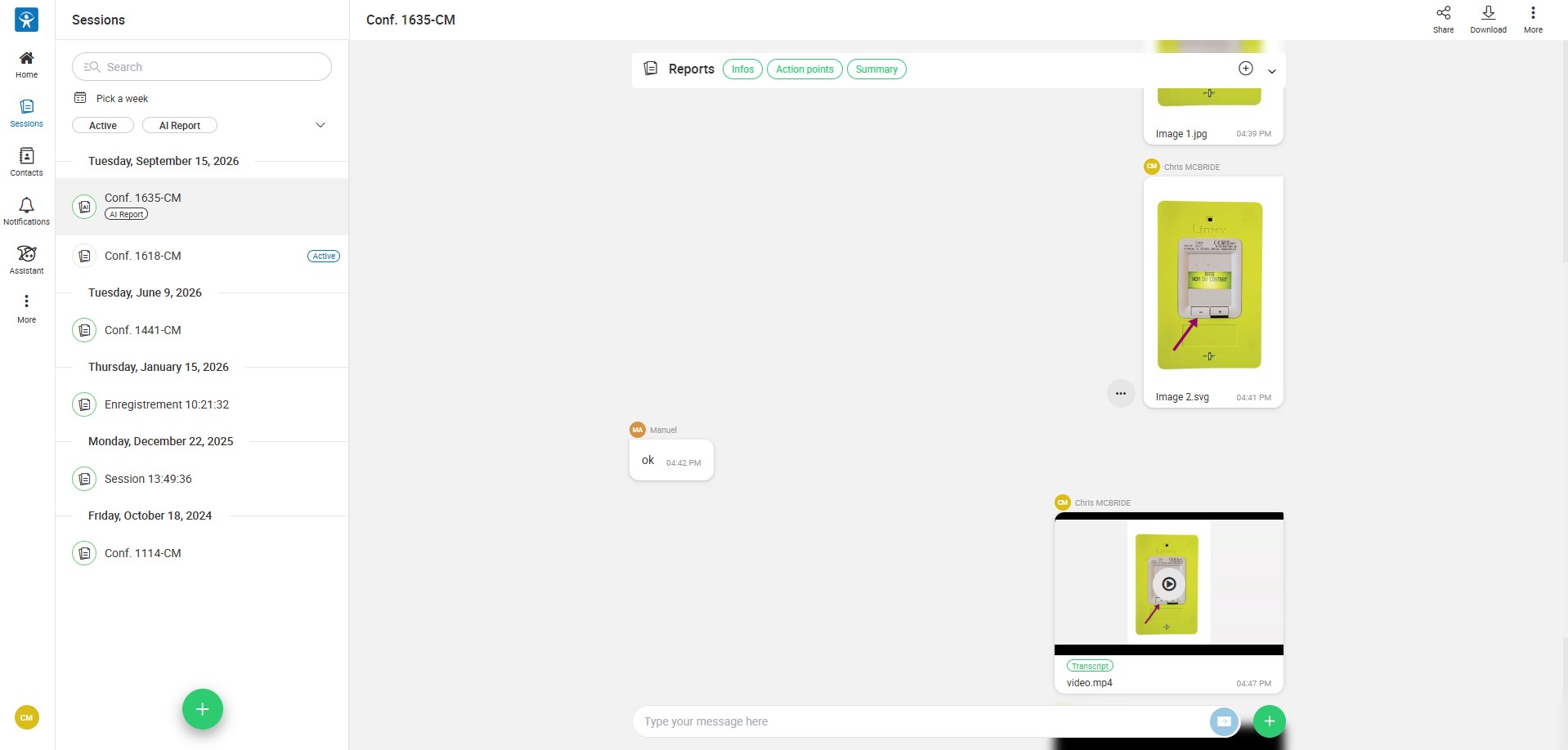
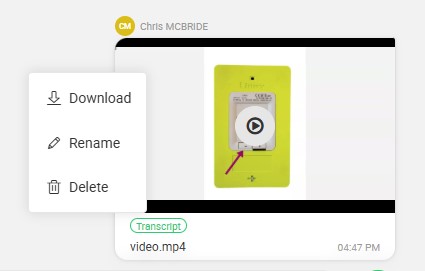
Each item in the Conversation timeline now provides contextual actions, such as download, directly from the timeline. The available actions depend on the user’s role and ownership of the content:
- Session owner: can perform all available actions on timeline items.
- Participant: can rename/edit or delete only the items they have added to the session.
On mobile, contextual actions are accessible with a long press on a timeline item. The same actions are also available when opening the item. For example, media such as images and recordings can be downloaded directly from the timeline or from the opened item.
Control session data retention after a conference
Section titled “Control session data retention after a conference”A new TTLAfterEndOfCall configuration gives administrators more control over how long work session data is retained after a conference ends.
When a call ends, TTLAfterEndOfCall overrides the standard session TTL, allowing customers to automatically delete session data after a shorter period, such as a few minutes or hours.
The standard TTL should be configured to a minimum of 24 hours. Customers requiring shorter retention after a conference can use TTLAfterEndOfCall instead.
A more powerful and intuitive Merlin experience
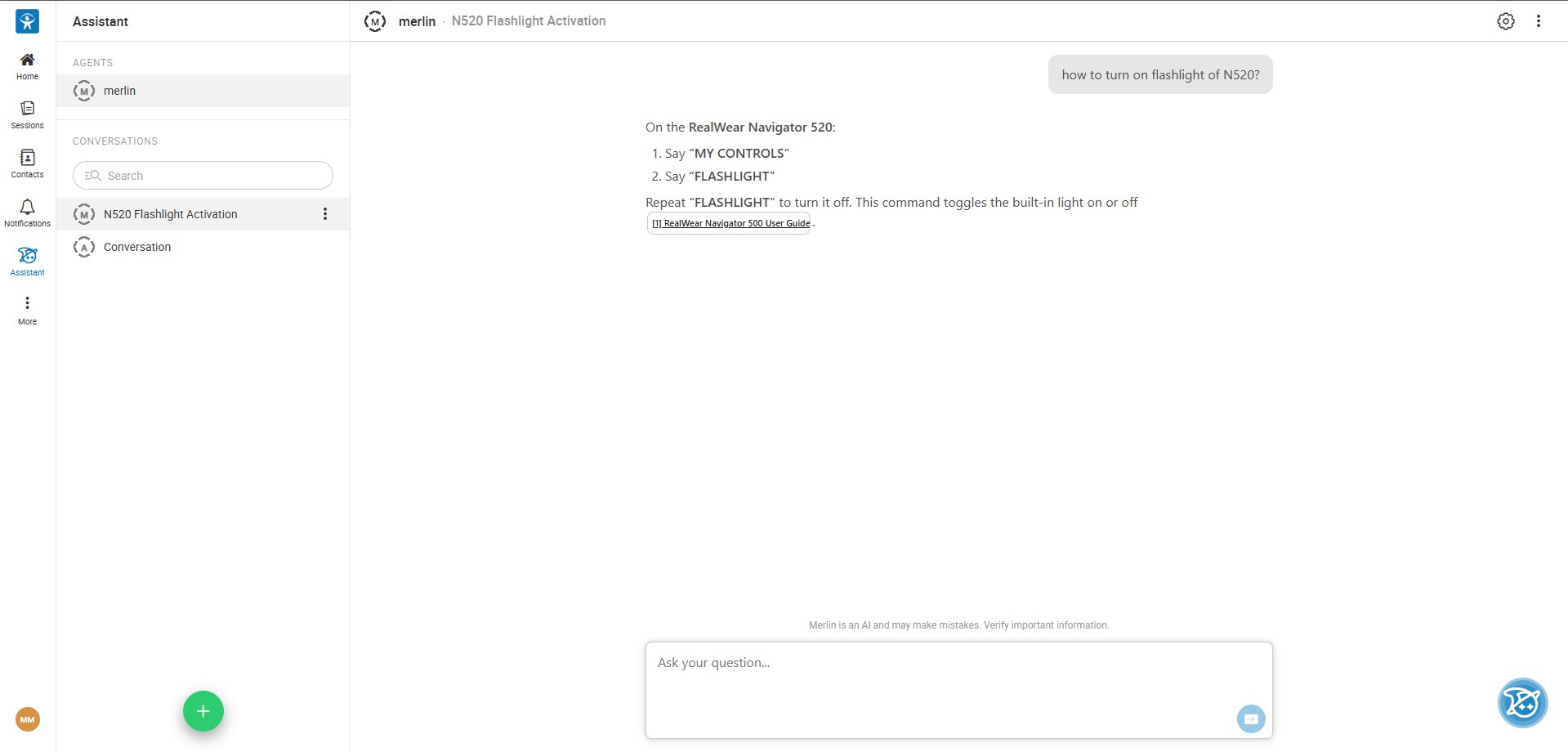
Section titled “A more powerful and intuitive Merlin experience”XpertEye v11 includes an update to Onyx, the engine powering Merlin. This new version brings reasoning-capable LLMs, enabling Merlin to better understand complex requests, reason through information and provide higher-quality, more relevant answers. It also lays the foundation for MCP (Model Context Protocol) server integration, opening the way for Merlin to interact with external tools and services and perform more advanced tasks. On desktop, Merlin has also been redesigned to provide a full-screen assistant experience, replacing the previous assistant panel on the left. This gives users more space to interact with Merlin and makes conversations easier to follow. The redesigned interface makes it easier to start a new conversation and discover and switch between available agents.
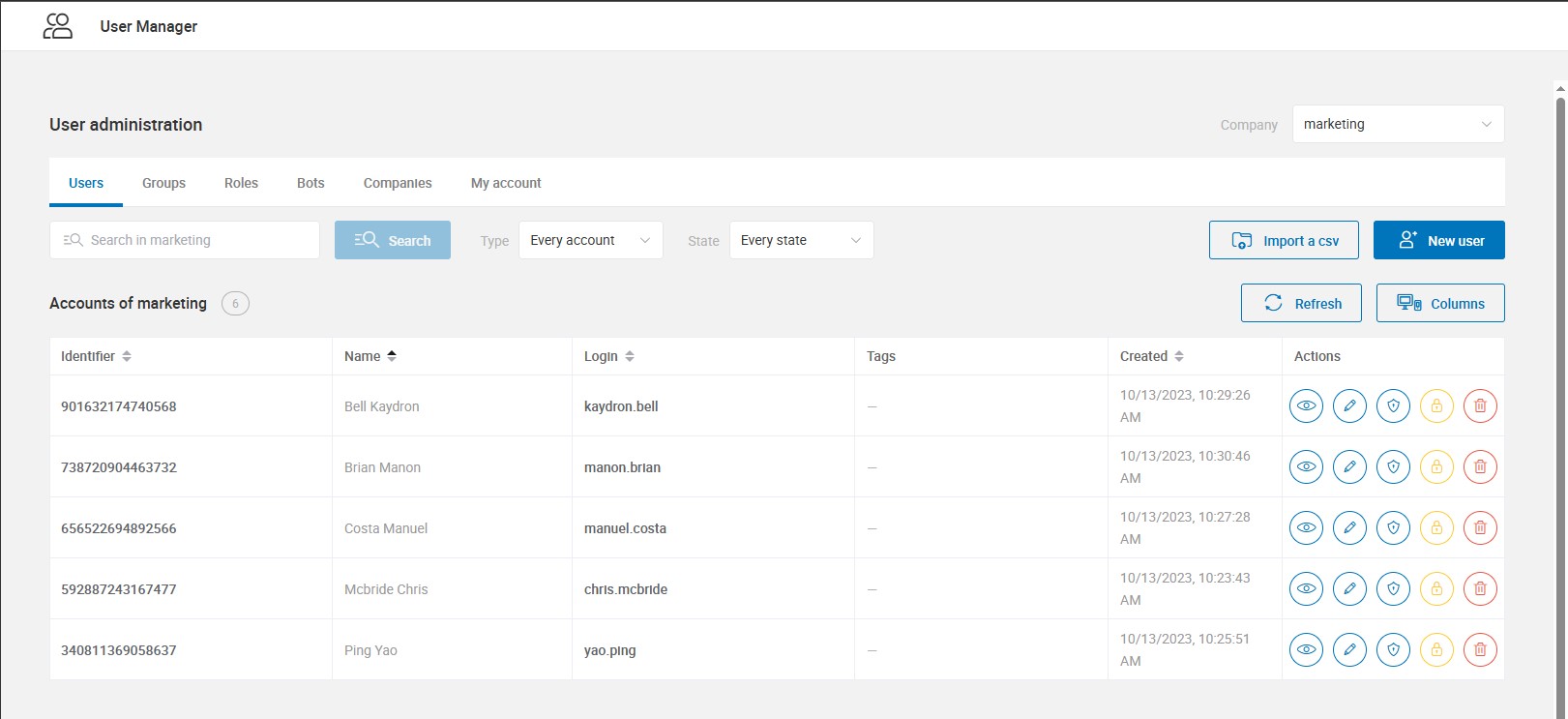
New User Manager in XE Admin
Section titled “New User Manager in XE Admin”A new User Manager is now available directly from XE Admin, providing a central place to manage users and groups. Administrators can:
- View and manage users within their company
- Create and edit users
- Manage user groups and their membership
- Manage bots from the new Bots section within User Manager
- Search and filter users to quickly find the accounts they need to manage
The new User Manager brings user and group management together in one dedicated interface, making administration easier and more consistent.