Improve your listening experience in the XpertEye app by setting up enhanced voices. Follow these simple steps to enable enhanced voice features:
|
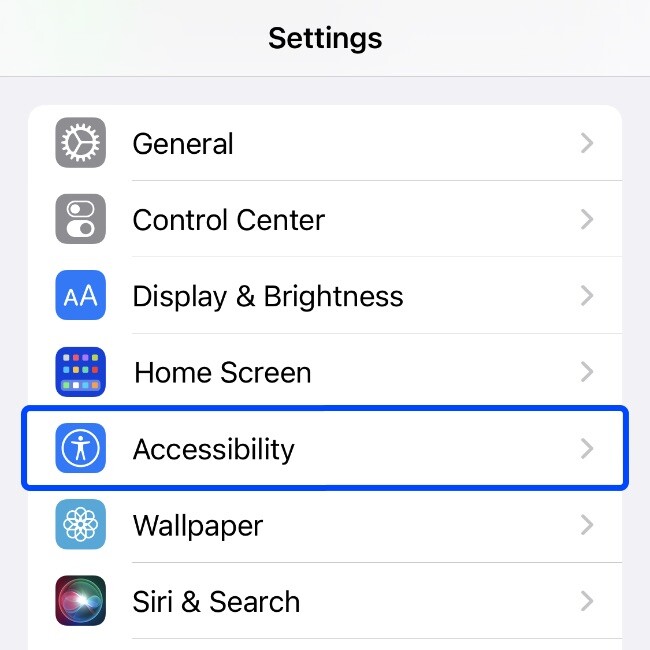
1. Access accessibility settings
- Open the Settings app on your device and navigate to Accessibility.
|
|
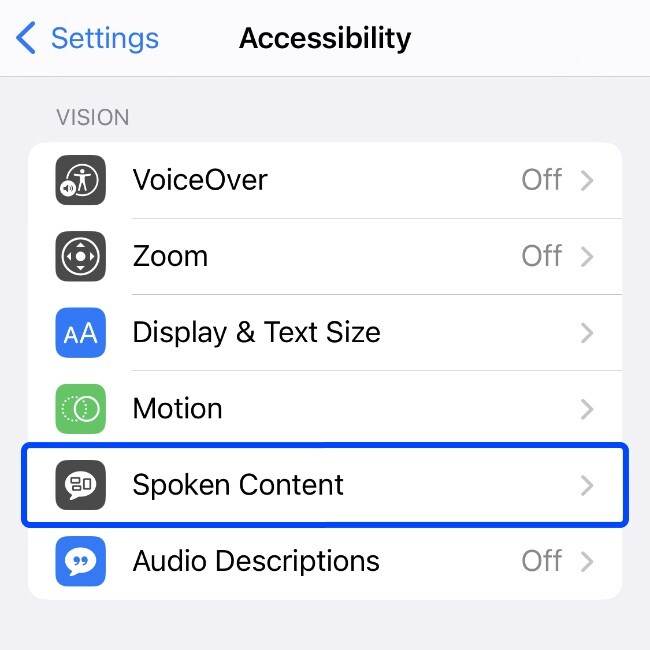
2. Enable spoken content
- Within Accessibility, go to Spoken Content.
|
|
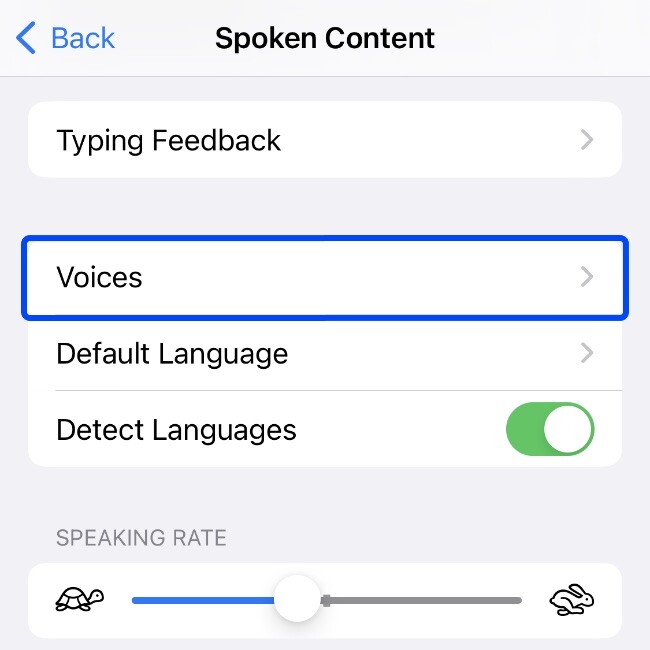
3. Select voices
- Tap Voices to manage the available voice options.
|
|
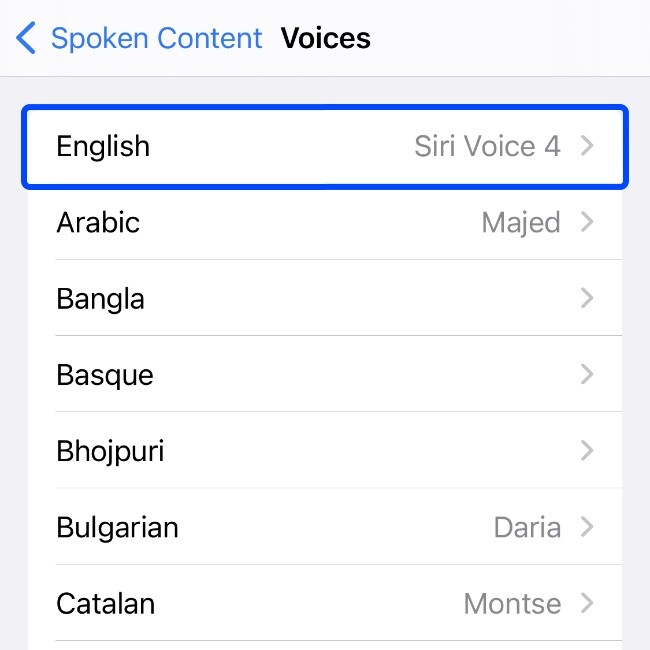
4. Choose the language
- Select the language you want to use in the XpertEye app.
- If you use other languages, download enhanced voices for those languages, too.
|
 |
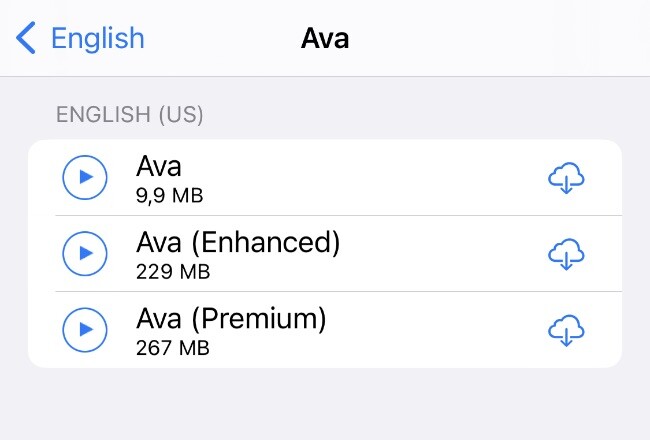
5. Download enhanced or premium voices
- Many voices offer enhanced or premium versions. If a voice has a download icon next to it, tap the icon to download the enhanced version.
|
 |
|
Note:
Due to Apple’s restrictions, Siri voices are not available for use in third-party apps like XpertEye.
|
6. Select your desired voice in XpertEye
- Open the XpertEye app.
- Select your desired enhanced voice from the available options in the Live Translation menu.
|
|
Enjoy a significantly improved listening experience with enhanced, high-quality voices in the XpertEye app.